Employees
Directory of all company employees, their contact details and roles.
Included in every plan, including Free.
What this screen is for
Employees is the central directory of all staff members in your organization. It manages employee profiles, job titles, department assignments, branch affiliations, compensation salary profiles, and mobile app invitation statuses.
The screen at a glance
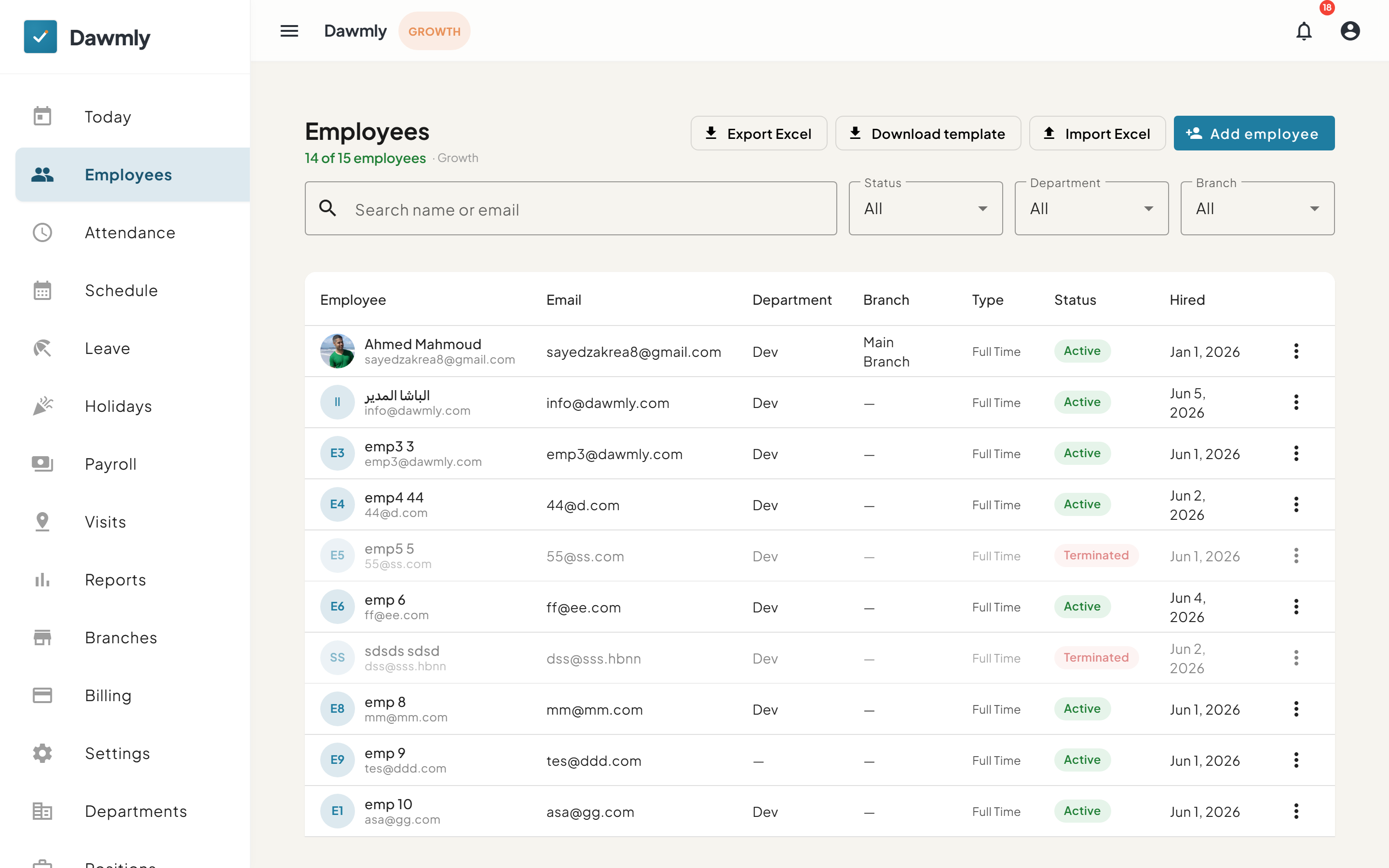
- Action toolbar includes Export Excel, Download template, Import Excel, and + Add employee buttons.
- Search and filter bar features a Search name or email input alongside Status, Department, and Branch dropdowns.
- Employees table displays columns for Employee, Email, Department, Branch, Type, Status, and Hired date.
- Row action menu provides options to view, edit, resend mobile credentials, or manage employee settings.
How to add an employee
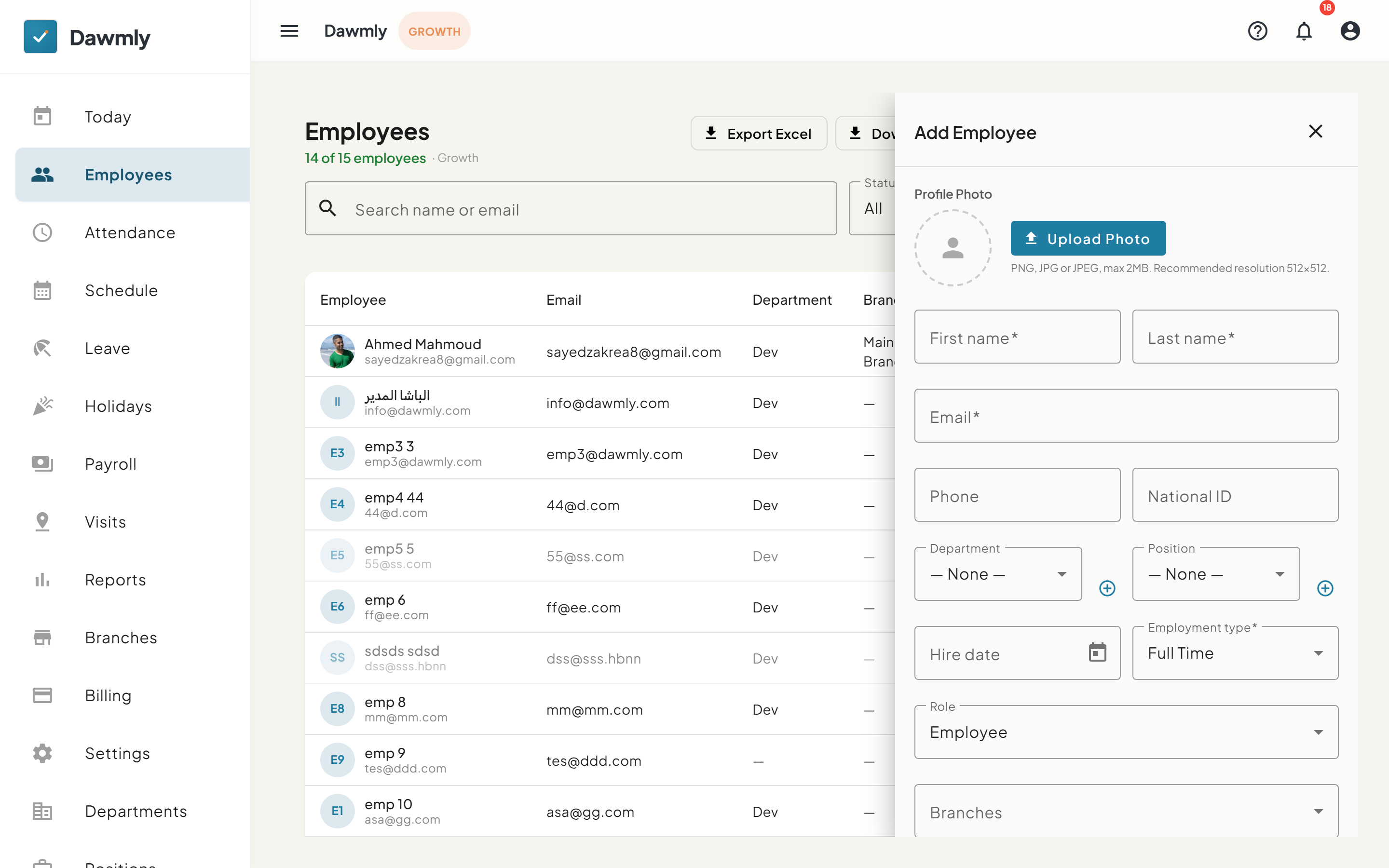
- Select + Add employee at the top right of the screen.
- Enter the employee's first name, last name, email address, and phone number.
- Select their department, job position, and assigned Branch from the dropdowns.
- On Growth plans, configure the Active salary profile specifying pay type (Monthly or Hourly), basic rate, and recurring allowances or deductions.
- Select Add employee to save the profile.
How to invite an employee to the mobile app
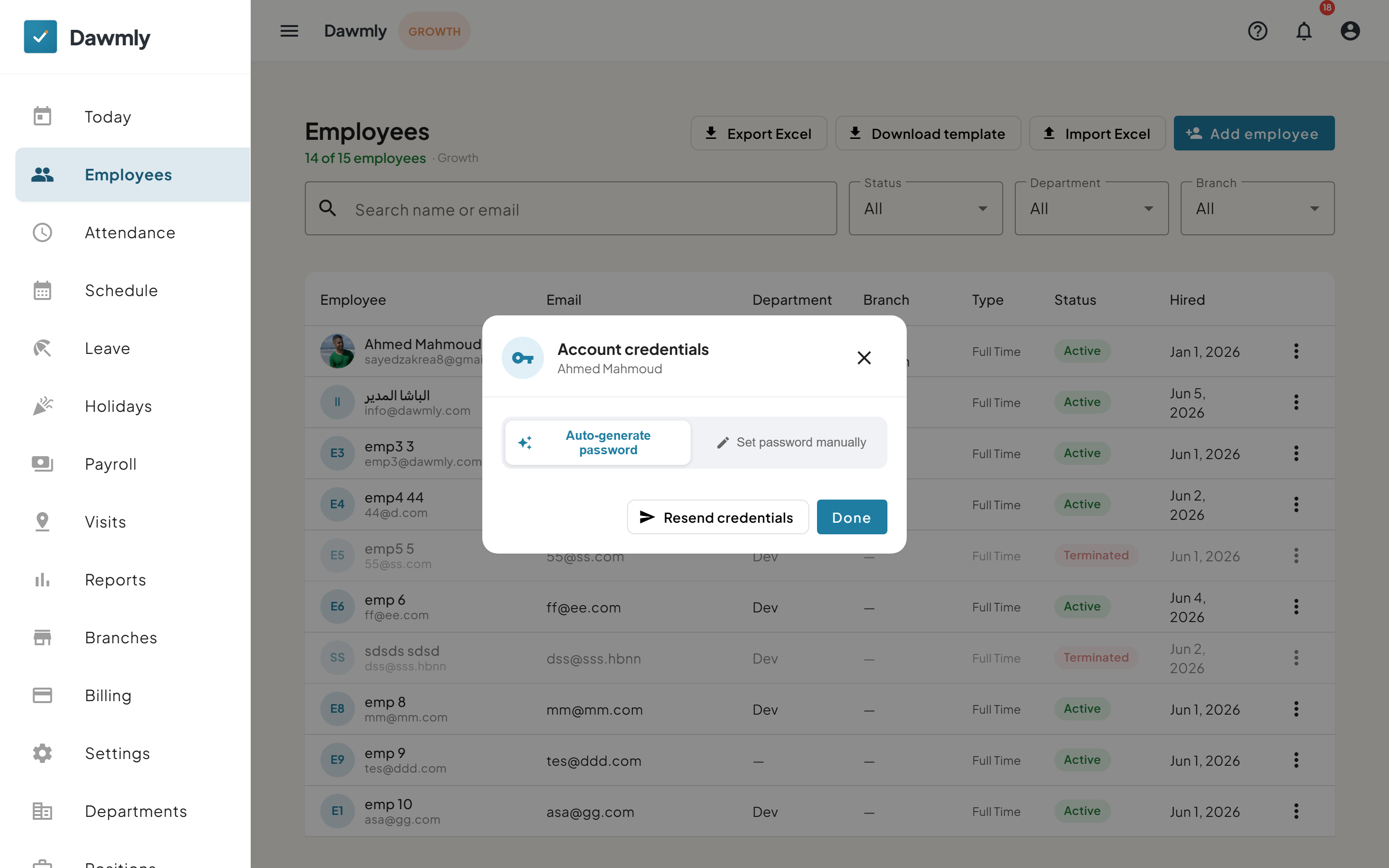
- Locate the employee in the directory table.
- Select the three-dot menu in their row and choose Resend credentials.
- Review the auto-generated password or set a custom temporary password.
- Select Resend credentials to deliver the login details to their registered email address.
Notes and limits
- Available on every plan.
- Branch administrators view and manage only employees belonging to their assigned branch.
- Active salary profiles are available on Growth and above. Requiring a selfie on clock-in is a tenant-wide setting on the Settings screen, not a per-employee option.