Support chat
In-app real-time messaging with the Dawmly customer support team.
Included in every plan, including Free.
What this screen is for
Support provides a direct, real-time messaging channel to the Dawmly support team from inside your workspace dashboard. It allows administrators and staff to ask questions, report issues, upload screenshots, and review past conversation history without leaving the application.
The screen at a glance
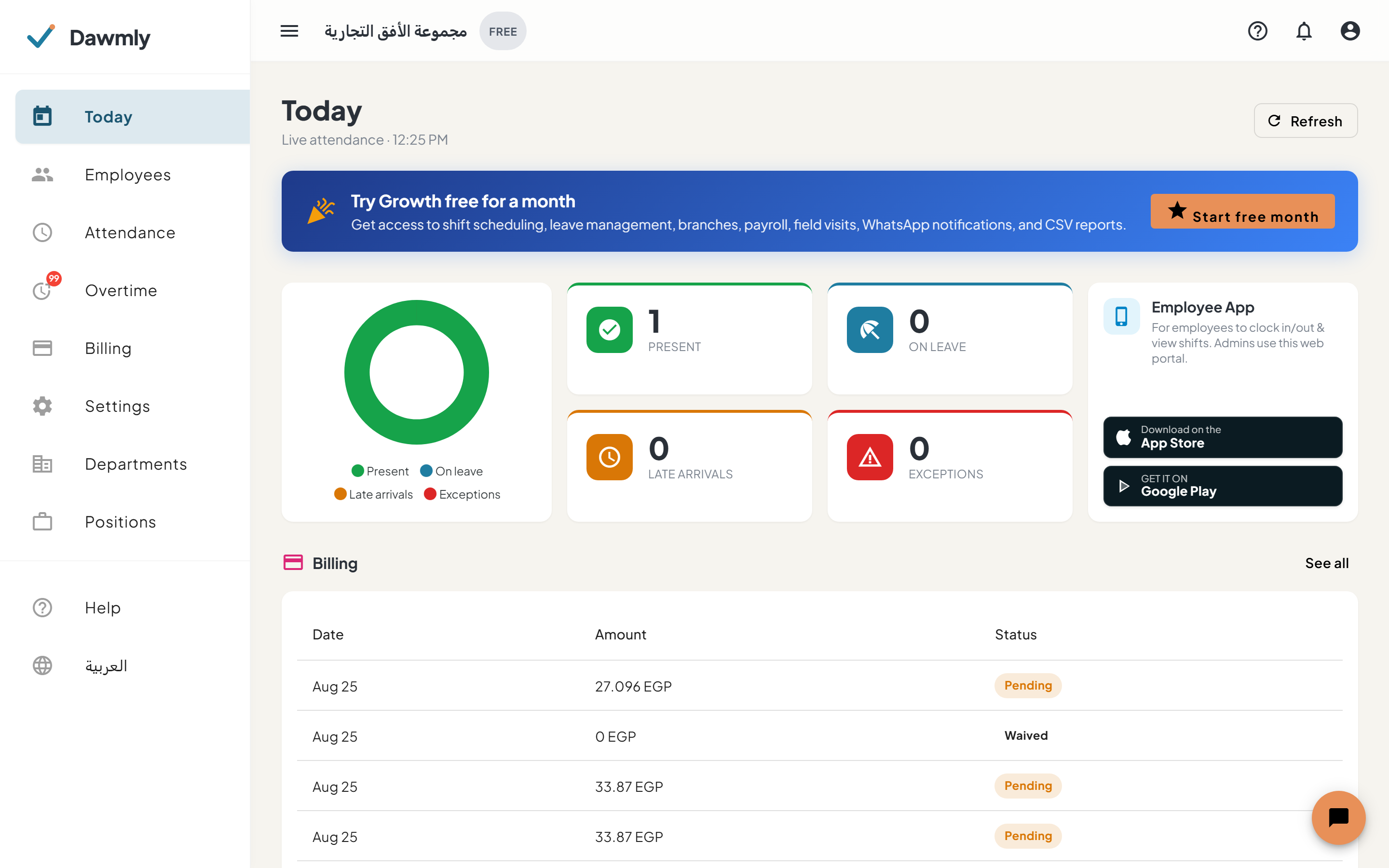
- Support launcher button (floating action button in the lower corner) displays unread message count badges and toggles the chat panel.
- Chat header includes conversation title, back navigation button, a Chat history button, and a close button.
- Message thread displays timestamps, sender labels (user, support team, system notices), seen indicators, and image previews with full-screen lightbox zoom.
- Message composer provides a text input, an Attach image button (PNG, JPEG, WebP up to 5 MB), and a Send button.
- Conversation history view lists past closed tickets with timestamps and snippet previews for reference.
How to message support
- Click the floating chat button in the bottom corner of any dashboard screen.
- Type your question or issue description into the message composer.
- Optionally click the attachment icon to upload relevant error screenshots.
- Click Send (or press Enter).
- When support replies, you will see real-time updates and an unread badge on the launcher icon.
How to view past conversations
- Open the support panel and click the History icon in the header.
- Select any closed conversation from the list to review past correspondence.
- Sending a new message within a closed conversation will automatically reopen the ticket.
Notes and limits
- Available on every plan, including Free.
- Image attachments must be under 5 MB in PNG, JPEG, or WebP format.