Settings
Configure organization profile, company logo, and official timezone.
Included in every plan, including Free.
What this screen is for
Settings configures primary organization profile information, company logo branding, official contact details, and the primary company timezone used to evaluate daily shift compliance across the dashboard.
The screen at a glance
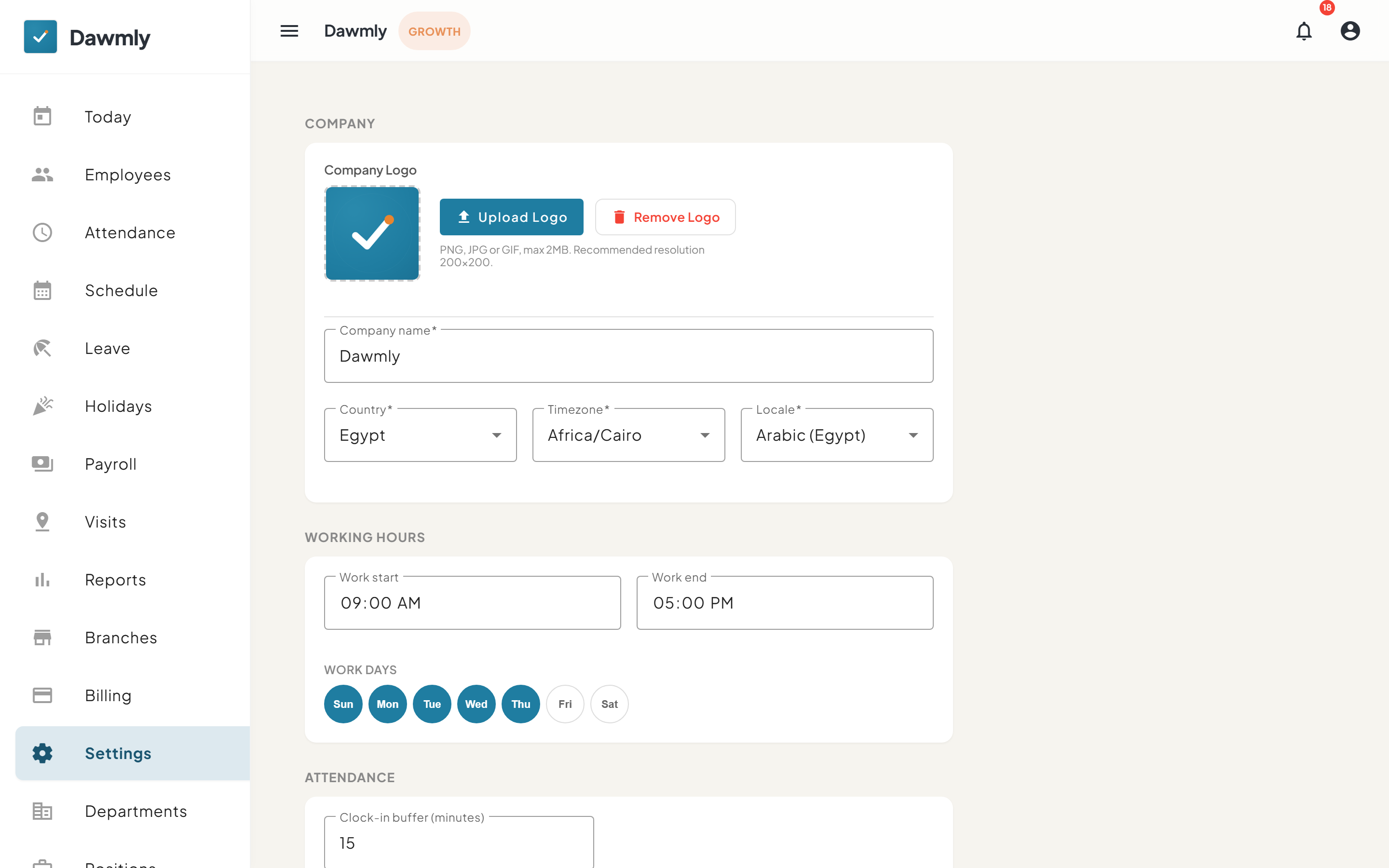
- Company section provides Upload Logo and Remove Logo buttons alongside Company name, Country, Timezone, and Locale inputs.
- Working hours section configures default Work start and Work end times, with WORK DAYS day selector buttons.
- Attendance section sets the organization-wide Clock-in buffer (minutes) parameter.
How to change company timezone
- Locate the Company section on the Settings page.
- Select the Timezone dropdown field.
- Search for or select your official organization timezone from the list (e.g.
Asia/Riyadh). - Select Save at the bottom of the page to apply the timezone update.
How to configure branch admin permissions
- Scroll to the Roles & permissions section at the bottom of the Settings screen.
- Under Branch admin, review the list of pages.
- Check the box next to any page a branch admin should be able to open; uncheck to hide and block that page.
- Today is always enabled for all users. Billing and Developers can never be granted to a branch admin.
- Select Save permissions. Branch administrators will be signed out automatically and must sign in again to receive their new permissions.
Notes and limits
- Available on every plan.
- The company timezone set here is what Today and Attendance screens use to evaluate "today". Changing the timezone updates date calculations across all branches.
- Accessible only to organization owners and HR administrators; branch administrators can access Settings only when explicitly granted permission in Roles & permissions.