Overtime
Review, approve, and export employee overtime records.
Included in every plan, including Free.
What this screen is for
Overtime is where managers and HR administrators review extra hours logged by employees beyond their scheduled shifts. It provides tools to approve or reject pending overtime requests individually or in bulk, inspect rounded versus raw overtime calculations, and export records for payroll processing.
The screen at a glance
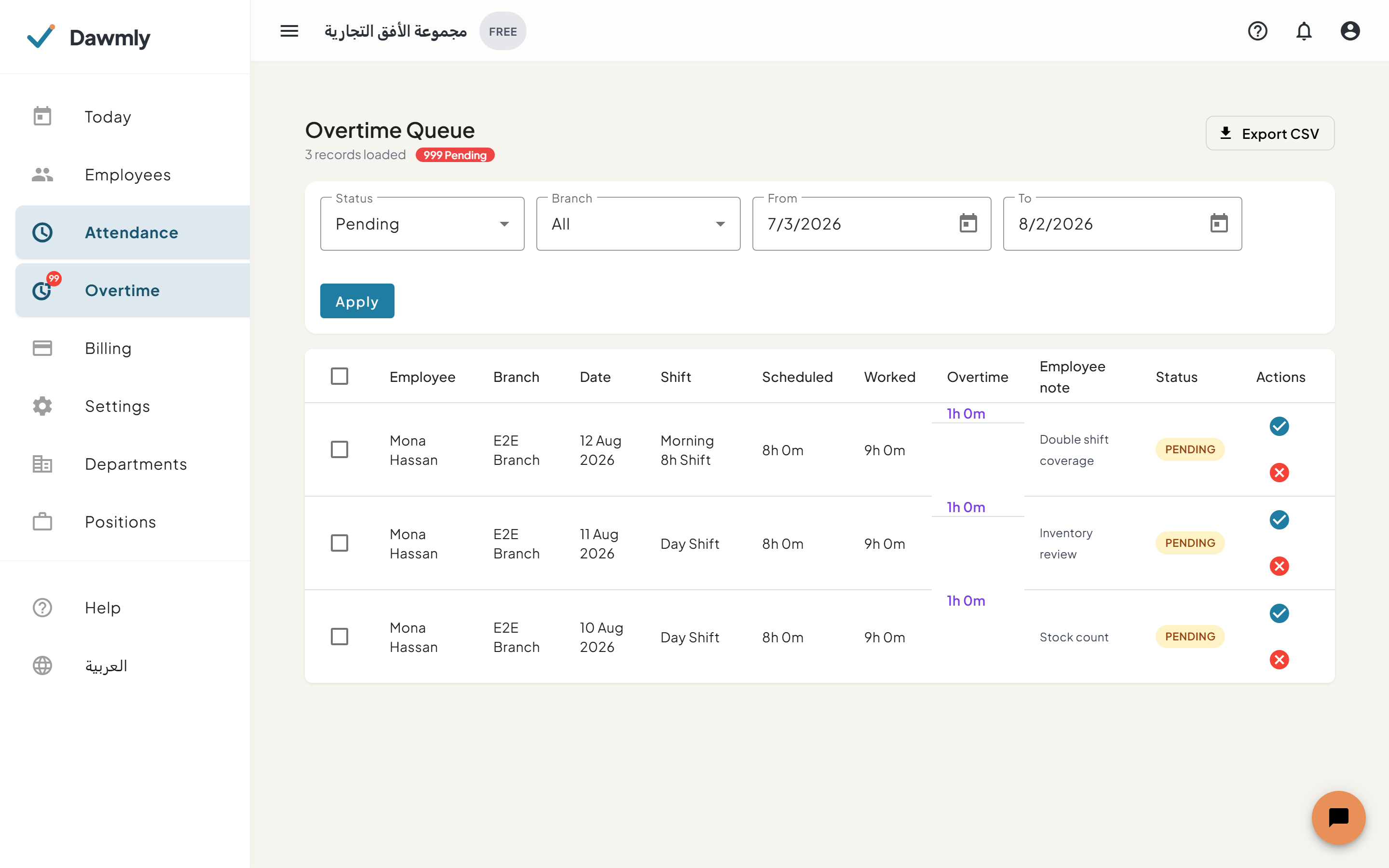
- Header summary and actions displays total and pending record counts, an Export CSV button, and a Bulk approve button for selected rows.
- Filter card allows filtering overtime entries by Status (Pending, Approved, Rejected, Cancelled), Branch, and From / To date ranges.
- Overtime table lists entries with columns for Select checkbox, Employee, Branch, Date, Shift, Scheduled time, Worked time, calculated Overtime (with raw minutes tooltip), Employee note, Status, and Actions (approve or reject with comment).
How to approve or reject overtime
- Filter the table by Status: Pending and select your desired date range.
- To approve an individual record, click the green checkmark icon in the Actions column.
- To reject an individual record, click the red cancel icon in the Actions column, enter a rejection reason in the dialog, and confirm.
- To approve multiple entries at once, check the select box next to pending rows (or select all) and click Bulk approve in the header.
How to export overtime records
- Apply your desired branch, date range, or status filters.
- Click Export CSV in the top action header to download the filtered overtime dataset.
Notes and limits
- Available on every plan, including Free.
- Branch administrators see and manage overtime records only for employees assigned to their branch.
- Approved overtime hours flow directly into payroll calculations on Growth plans.