Branches
Manage company branch locations, GPS geofences, and office sites.
Available from the Starter plan.
What this screen is for
Branches configures your company's physical workplace locations and geofence perimeters. Each branch defines GPS coordinates and an allowable radius for mobile app check-ins.
The screen at a glance
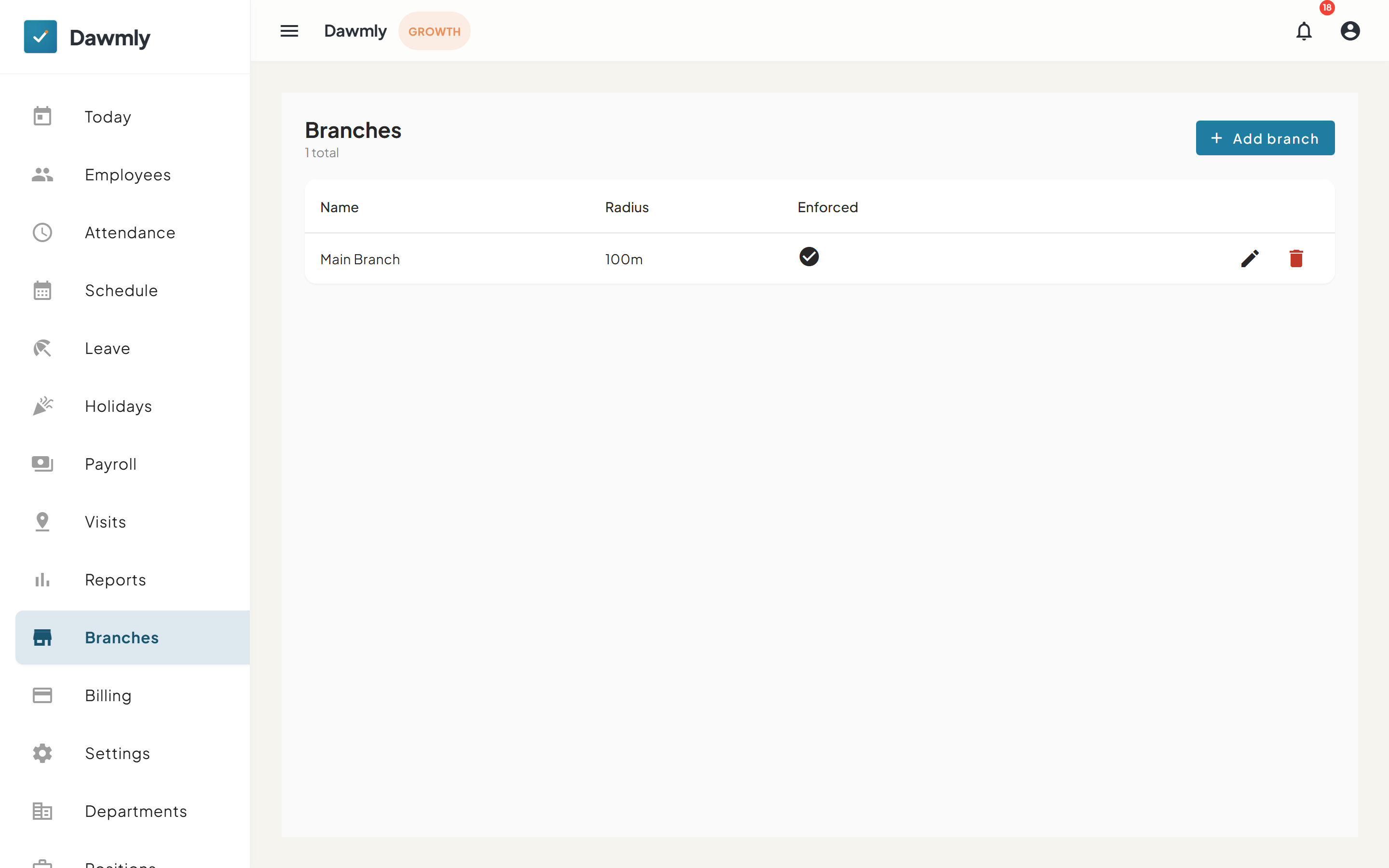
- + Add branch button opens the creation dialog to specify branch name, location, and geofence perimeter.
- Branches table lists configured sites under Name, Radius, and Enforced status columns.
- Row action icons provide edit pencil and delete trash buttons to modify or remove branch settings.
How to add a branch
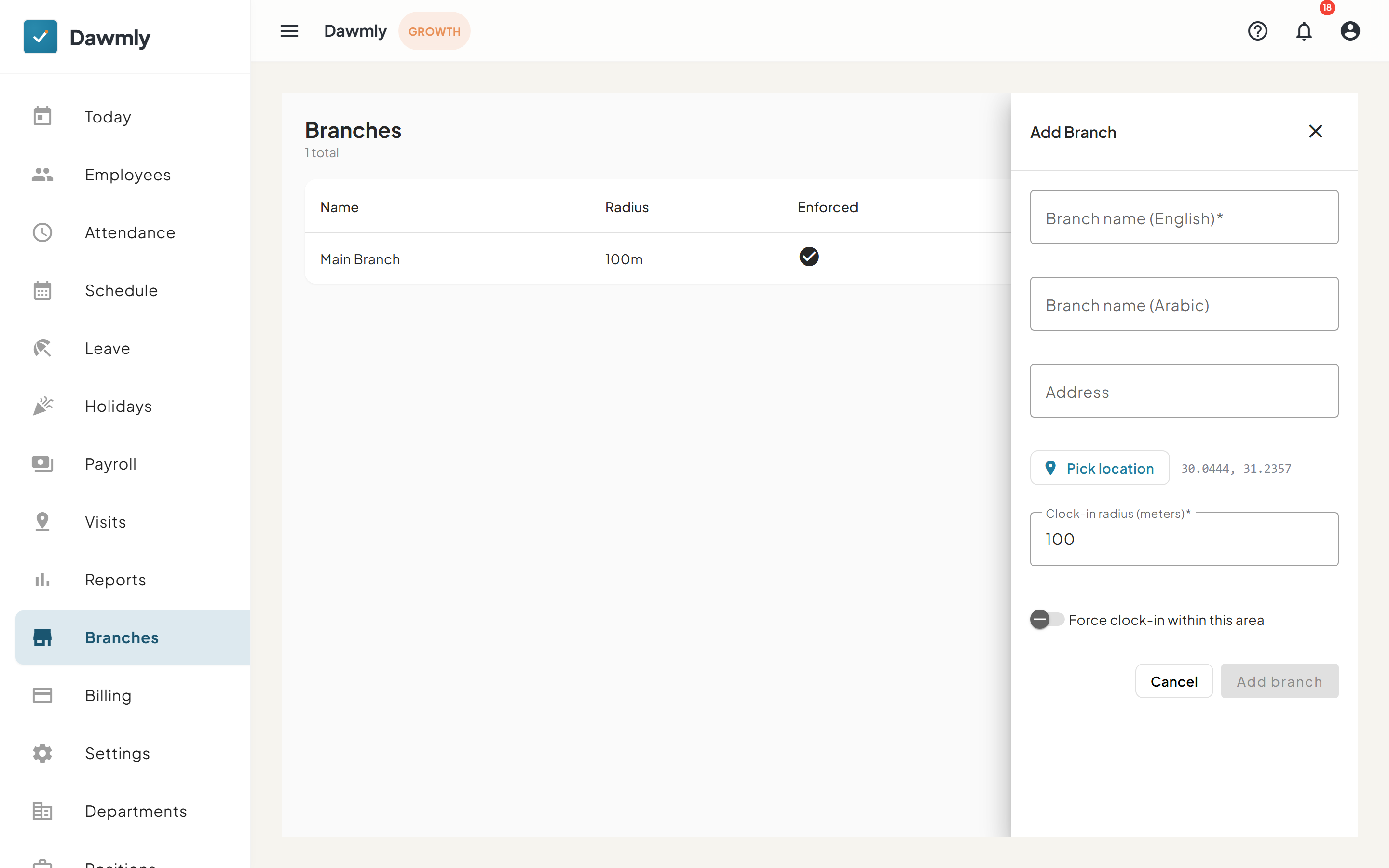
- Select + Add branch at the top right of the Branches screen.
- Enter the branch name, Arabic name, and street address.
- Select Pick location on the map to set the exact GPS coordinates.
- Set the allowable geofence radius in meters and toggle whether geofence enforcement is required.
- Select Save to create the branch.
Notes and limits
- Available from the Starter plan.
- A branch administrator sees only their own branch. The Branches menu item is hidden entirely for branch administrator accounts.